Windows OS comes with a built-in uninstaller that provides a platform to remove unwanted apps from the PC. After making some changes, you will install or uninstall software on the Windows PC in Safe Mode. Removing installed applications from PC is a simple task, but sometimes a user cannot remove particular applications due to some reasons, for example – corrupt file, etc. Third-party freeware does the advanced task for you and uninstalls all stubborn software from your PC, and even it deletes the residual files, folders, etc. In this post, we will use a free and portable uninstaller freeware called MyUninstaller.
MyUninstaller Review
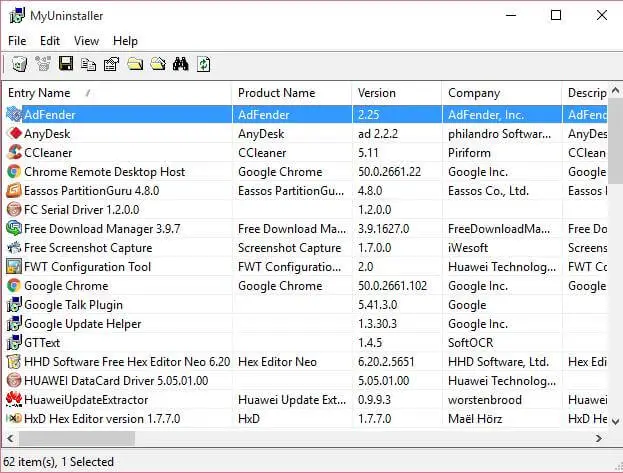
MyUninstaller is too small in size and also does not require to be installed. Download it, double-click on the Exe file, and the tool scans your PC and provides you complete details of the installed software on your computer.
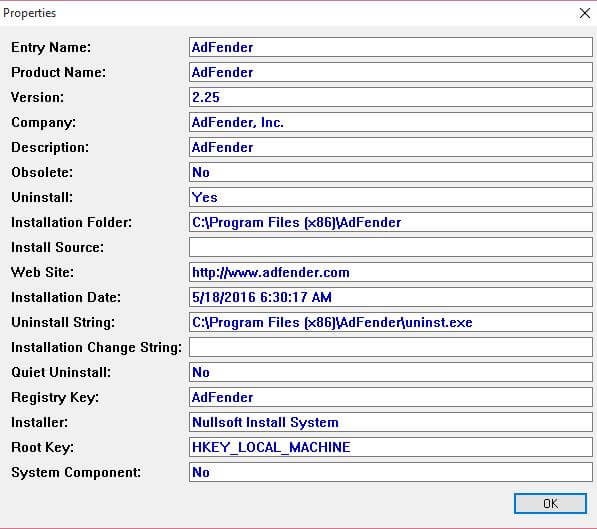
 Once you double-click any software, it will let you know its properties like the installation folder, date of installation, product name, root key, uninstall string, web-site, etc.
 MyUninstaller is quite easy to use, and there is no technical knowledge required. Right-click on the software which you want to remove, and you will get an option “Uninstall selected software.”
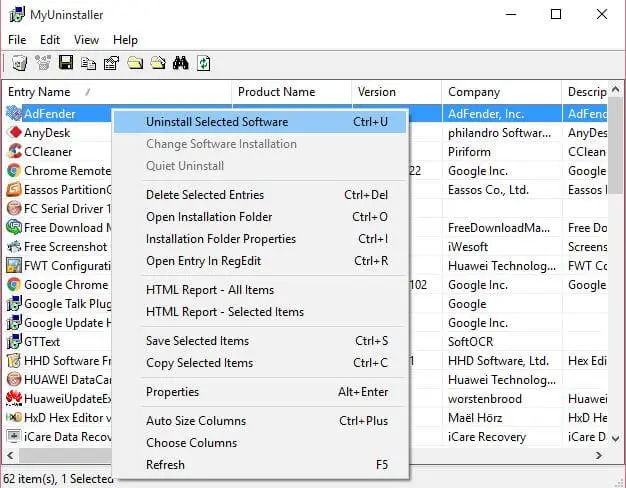
This freeware tool is compatible with all the Windows versions, e.g., Windows 10 / 8 / 8.1 / 7 / Vista / XP. It allows you to Uninstall Selected App, Delete Selected Entries, Open Installation Folder, Installation Folder Properties, Open Entry in RegEdit, etc.
The MyUninstaller can also remove multiple apps at a time, which is not available in the built-in Windows uninstaller. However, the removal process will be done one by one, allows you to select multiple files and start the process with this tool, using the Advanced Mode of MyUninstaller.
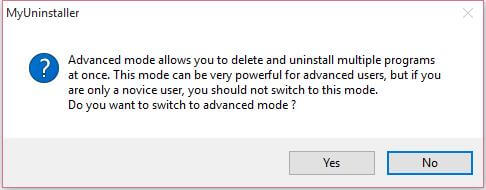
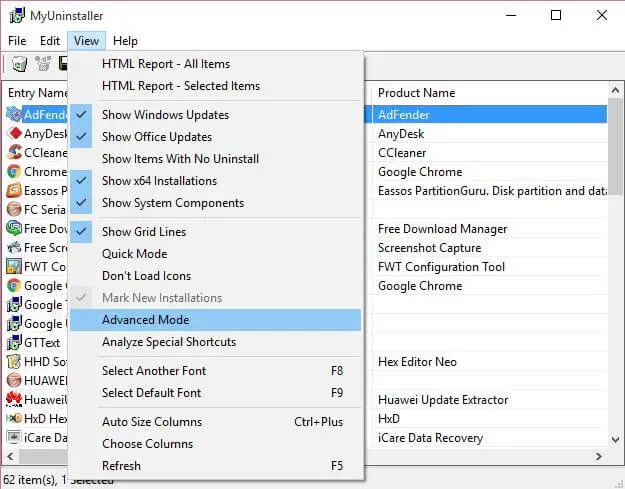 The advanced mode of MyUninstaller allows you to delete and uninstall multiple programs at once. This mode can be compelling for advanced users, and you should not switch to this mode if you are a novice.
If you are looking for a small but powerful and portable uninstaller freeware, you must try out MyUninstaller. You can download MyUninstaller from Nirsoft.